
Configure Claude Code with CC Switch
Install CC Switch and Claude Code on macOS, then import an X-AIO provider configuration with one click.
CC Switch is an open-source tool for managing Claude Code provider configurations. This tutorial is intended for first-time command-line users. Using macOS, CC Switch 3.20.0, and Claude Code 2.1.245, it walks through installation, one-click X-AIO configuration import, and the first verification request.
Windows users should download the Windows installer from CC Switch's GitHub Releases page and follow the installation wizard. The rest of this tutorial uses macOS. Button locations may vary slightly between Windows and macOS or across CC Switch versions, but the overall process is the same.
Important information for users in mainland China
Claude Code's official service is not currently available to users in mainland China. Accessing the official download page, downloading installation components, completing first-time initialization, or using Anthropic's official service may require a VPN or proxy. A proxy can improve network connectivity, but it cannot guarantee account security, account availability, or freedom from restrictions. Comply with applicable local laws and Anthropic's terms of service, and assess the account risks yourself.
Before you begin
Sign in to the X-AIO Tokens Plan API key page in Chrome. This tutorial never asks you to reveal the complete API key. Do not click the eye icon beside the key or include the key in screenshots, chats, or repositories.
1. Download and install CC Switch on macOS
Download CC Switch from its official download page or GitHub Releases. Both are official distribution channels published by the CC Switch project. This tutorial was tested with v3.20.0, which supports macOS 12 and later.
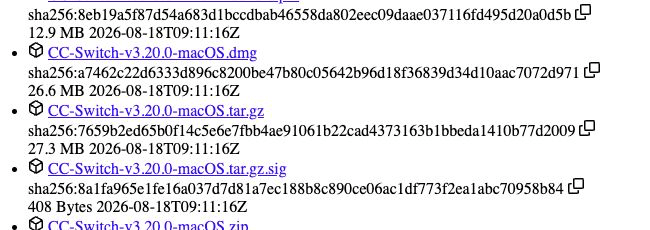
Expand Assets at the bottom of the release page and download CC-Switch-v3.20.0-macOS.dmg. This universal installer supports both Apple silicon and Intel processors. If a newer version is available, download the latest macOS .dmg instead.
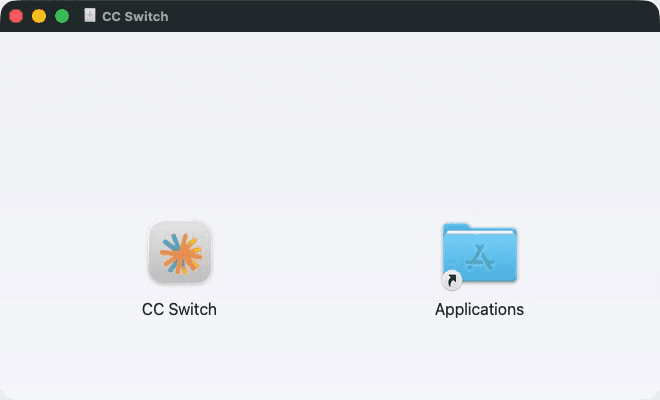
When the download finishes, double-click the .dmg, then drag the CC Switch icon into the Applications folder.
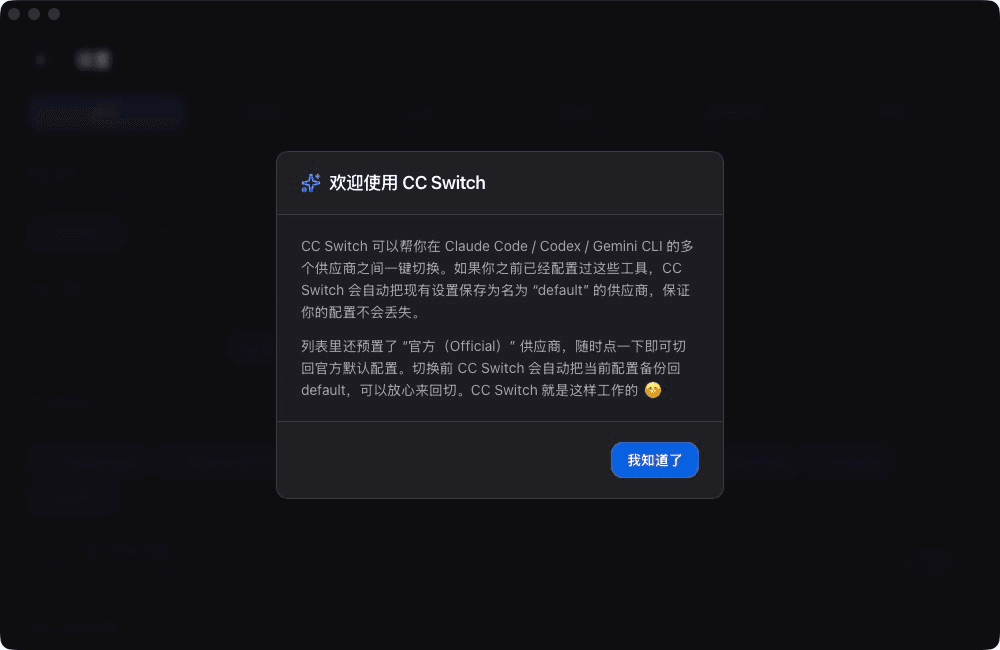
Open CC Switch from Applications. If macOS warns that the app was downloaded from the internet, verify the app name and click Open. A welcome window appears on the first launch. Read the notice and click I understand (我知道了).
Installation security
If macOS says the app is damaged or cannot verify the developer, stop the installation and download the latest release again from the official CC Switch GitHub repository. Do not disable Gatekeeper or use commands to bypass macOS security checks.
2. Switch the interface to Simplified Chinese
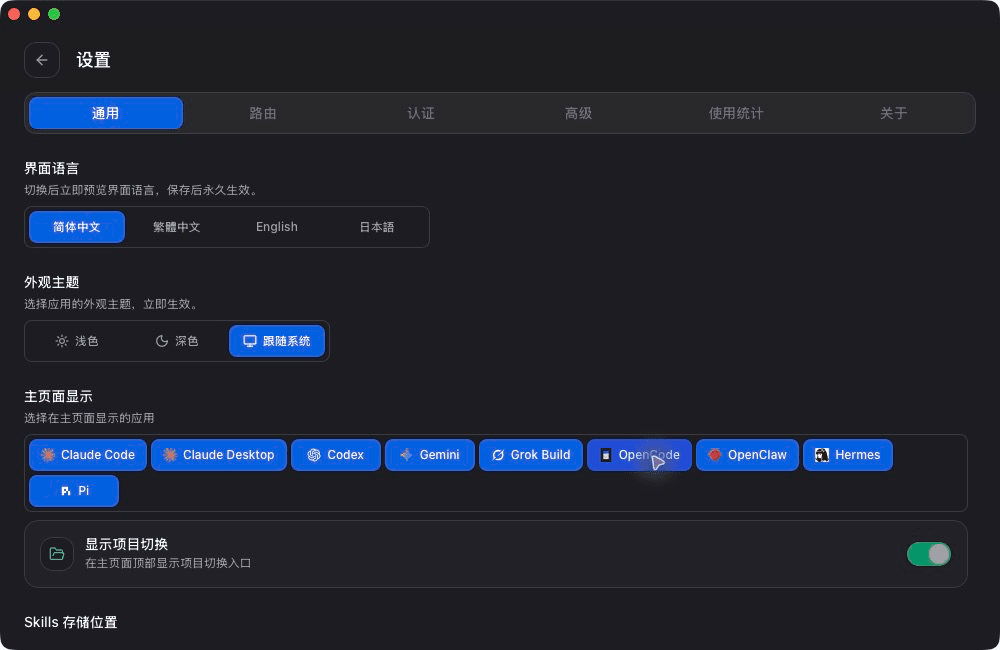
The screenshots and exact button labels in this tutorial use the Simplified Chinese interface:
- Click Settings (
设置, the gear icon) in the upper-left corner of CC Switch. - Open General (
通用). - Select Simplified Chinese (
简体中文) under Interface Language. If it is already selected, return to the previous screen.
3. Install Claude Code
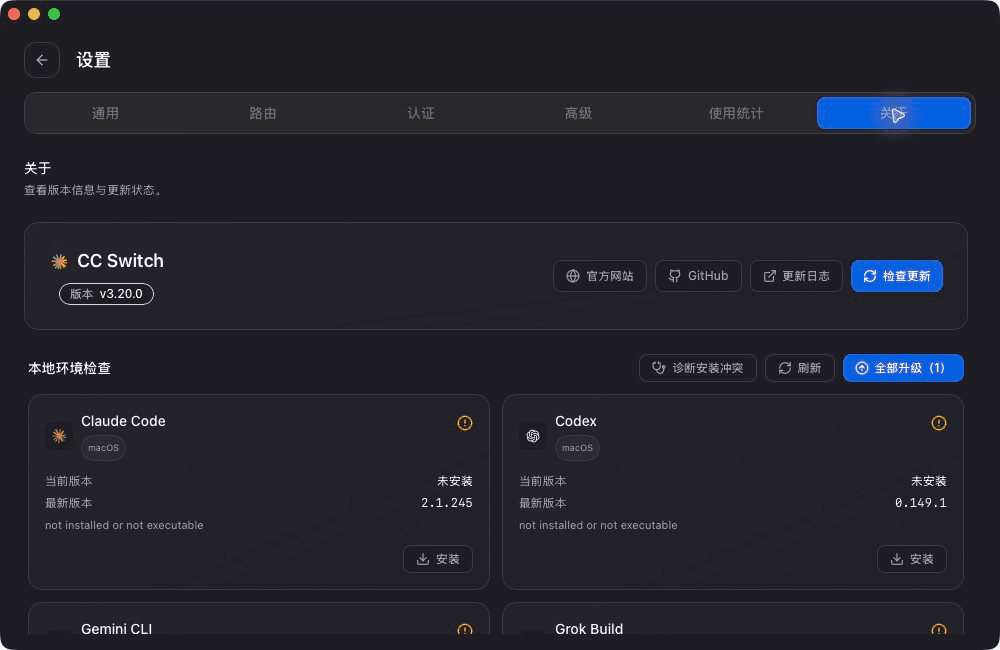
CC Switch manages provider configurations, while Claude Code performs the actual coding tasks. You can install Claude Code directly through CC Switch:
- Open About (
关于) from the Settings page. - Scroll to Claude Code under Local Environment Check.
- If Current Version shows Not Installed, click Install in the lower-right corner of the card.
- Wait for the installation to finish without quitting CC Switch. A VPN or proxy may be required if your network cannot reach the official download service.
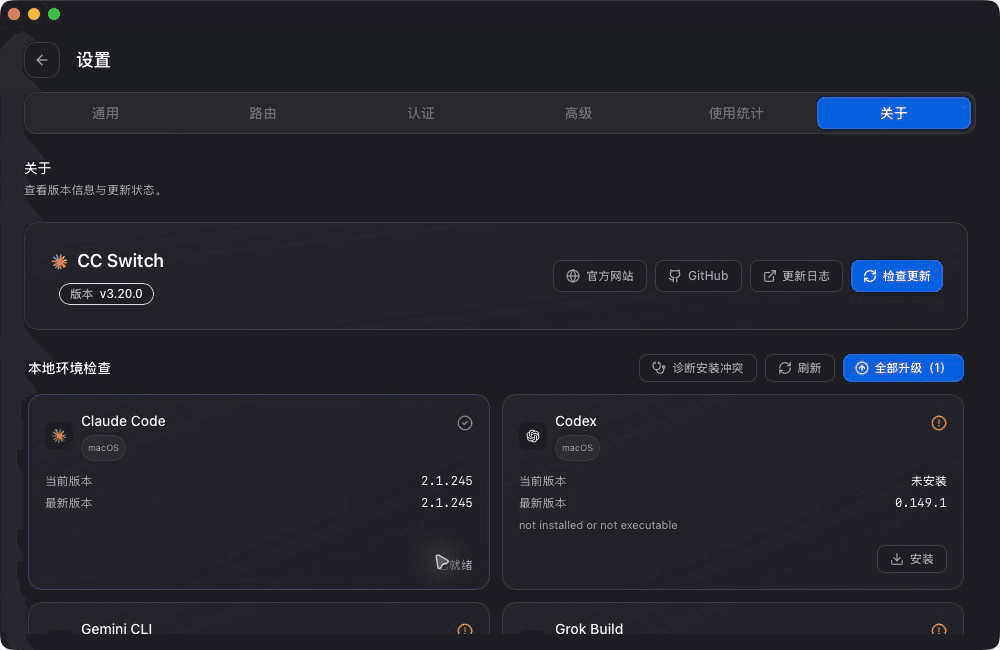
After installation, click Refresh to the right of Local Environment Check. A green check mark and a current version number on the Claude Code card indicate a successful installation. Both the current and latest versions were 2.1.245 when this tutorial was tested. A higher version number in the future is normal.
4. Create a dedicated X-AIO API key
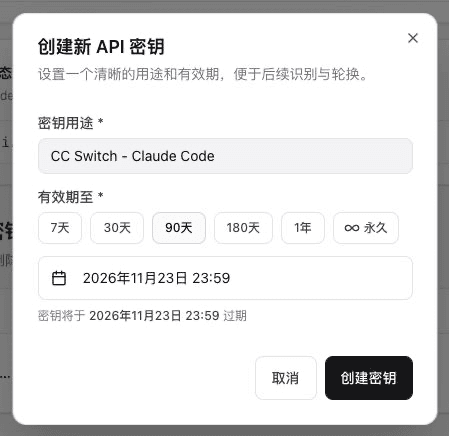
Open the X-AIO API key page, click Create API Key, and use the following example values:
- Key purpose:
CC Switch - Claude Code. - Expiration: 90 days. A permanent key is not recommended for a temporary device.
- Review the values and click Create Key.
You do not need to copy or reveal the key after creating it. In the next step, X-AIO's one-click integration passes the configuration directly to CC Switch on this computer.
5. Import the configuration into CC Switch with one click
Find the action area at the far right of the card for the key you just created.
This small button is easy to miss
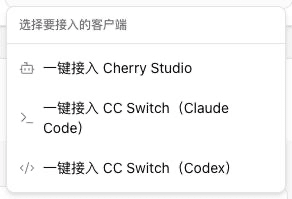
Click the One-click Client Setup icon at the far right of the key's action area. It looks like a branching node. It is neither the copy button nor the eye icon.
The one-click setup link is also sensitive
Click the one-click setup option only on your own computer. Do not copy, share, or screenshot the link, and do not include the browser address bar in a screenshot. The link contains the API key used for import, so exposing the link exposes the key.
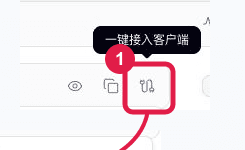
From the expanded menu, select One-click Setup for CC Switch (Claude Code). Do not select the Codex option below it.
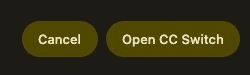
Chrome then asks for permission to open an external application. Click Open CC Switch so the browser can pass the configuration to the installed app. You do not need to select Always allow.
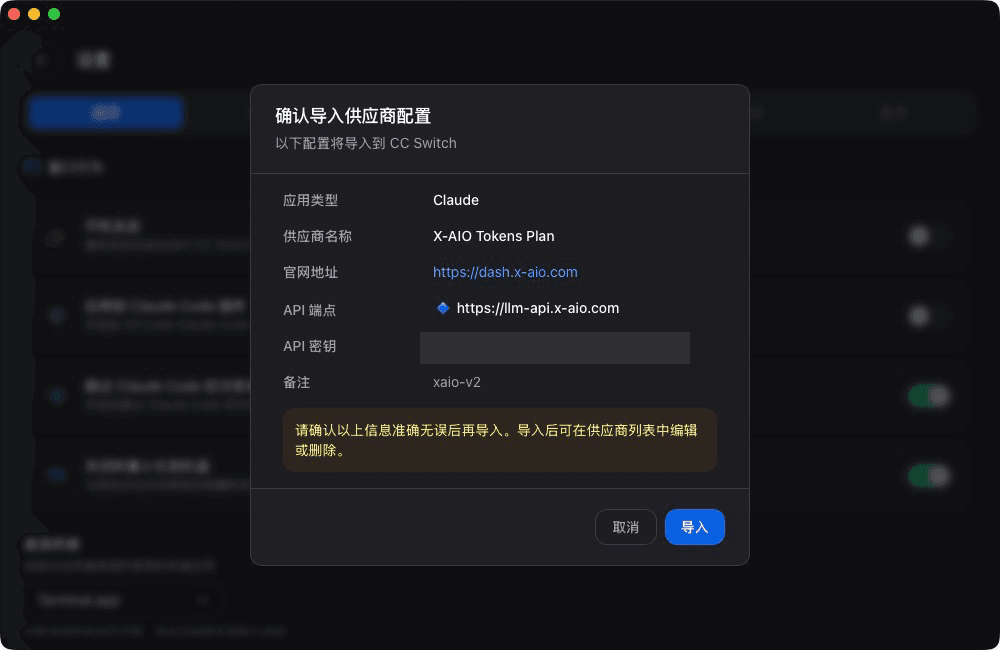
When CC Switch opens the Confirm Provider Configuration Import window, verify each field:
| Setting | Expected value |
|---|---|
| Application type | Claude |
| Provider name | X-AIO Tokens Plan |
| API endpoint | https://llm-api.x-aio.com |
| API key | Keep it hidden; do not click or reveal it |
| Notes | xaio-v2 |
The API endpoint does not need /anthropic or /v1 at the end. Do not add any other path. After confirming the values, click Import.
6. Skip first-time installation confirmation and enable the provider
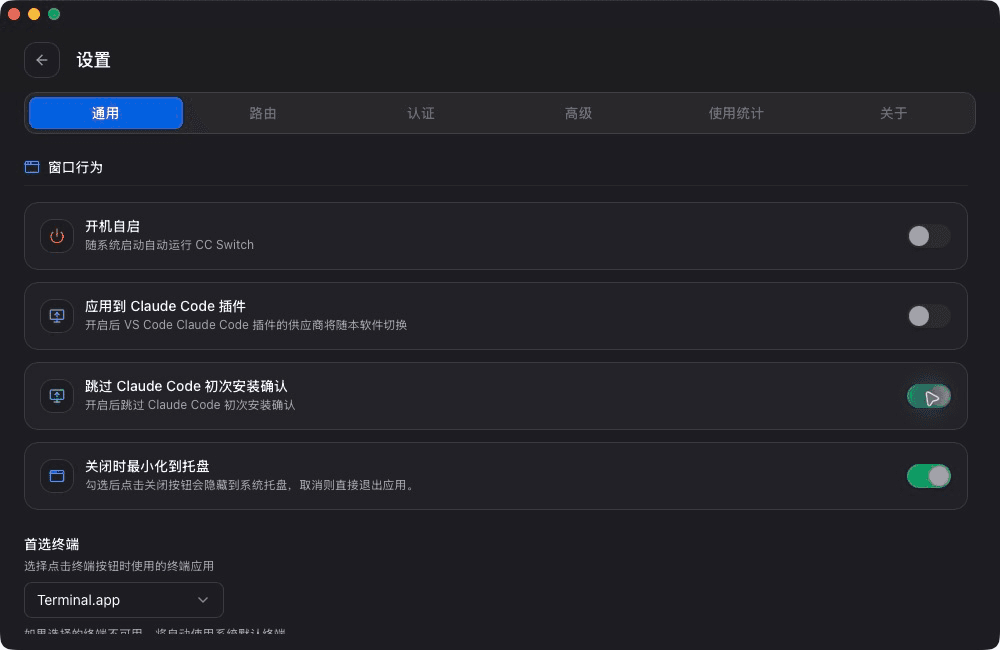
Return to Settings → General and enable Skip Claude Code Initial Installation Confirmation. This toggle only skips Claude Code's first-time installation confirmation flow. It does not install Claude Code for you or change Anthropic's regional and account policies.
Return to the CC Switch home screen and enable the imported configuration in this order:
- Select Claude Code at the top of the page.
- Click X-AIO Tokens Plan in the provider list.
- A blue border around the provider card indicates that CC Switch has switched to this provider.
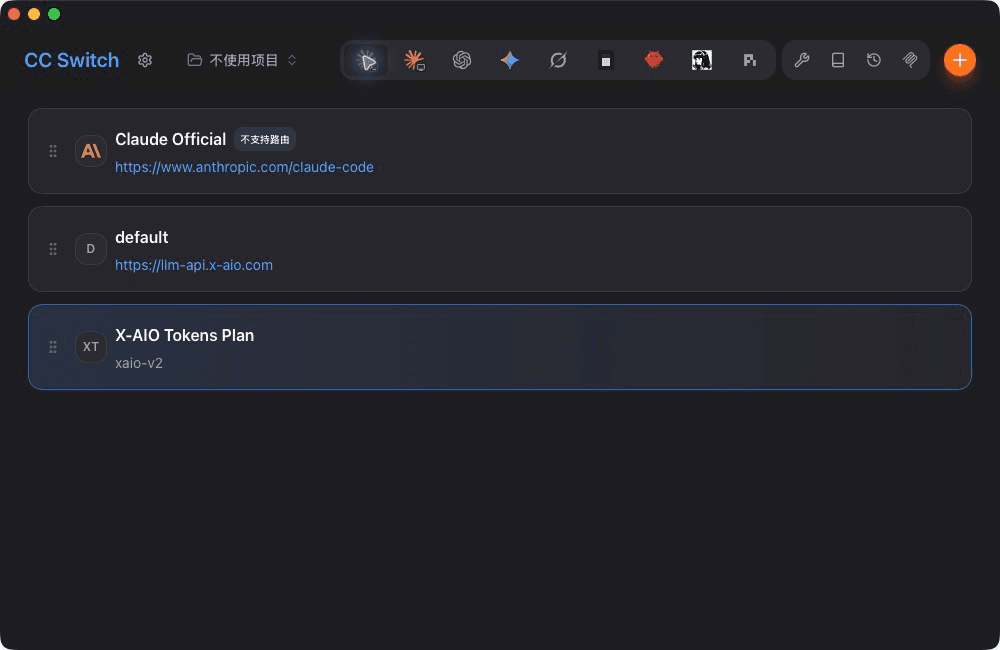
Importing and enabling are separate steps
An Import Successful message does not mean the provider is enabled. Return to the Claude Code provider list and click the X-AIO Tokens Plan card to switch to it. CC Switch can usually change the provider for Claude Code immediately. If the current session continues to use the old configuration, exit Claude Code and restart it.
The default card in the screenshot is a backup that CC Switch created for an existing local configuration. New installations may not show it, and you do not need to create it manually.
7. Verify the configuration in an empty folder
Claude Code can read and modify files in the current directory. For your first test, use a newly created empty folder rather than an important project or a directory containing personal files.
Open Terminal on macOS and run these commands in order:
mkdir -p /tmp/xaio-claude-code-demo
cd /tmp/xaio-claude-code-demo
ls -A
claude
No output from ls -A means the test folder is empty. macOS may display /tmp as /private/tmp; both paths refer to the same temporary directory. If the command lists any files, do not run claude. Choose a new directory name, such as xaio-claude-code-demo-2, and check it again.
If Claude Code asks whether you trust the current folder, confirm that the path ends in xaio-claude-code-demo, select Yes, I trust this folder, and press Enter. Do not trust an unfamiliar directory or one containing important files.
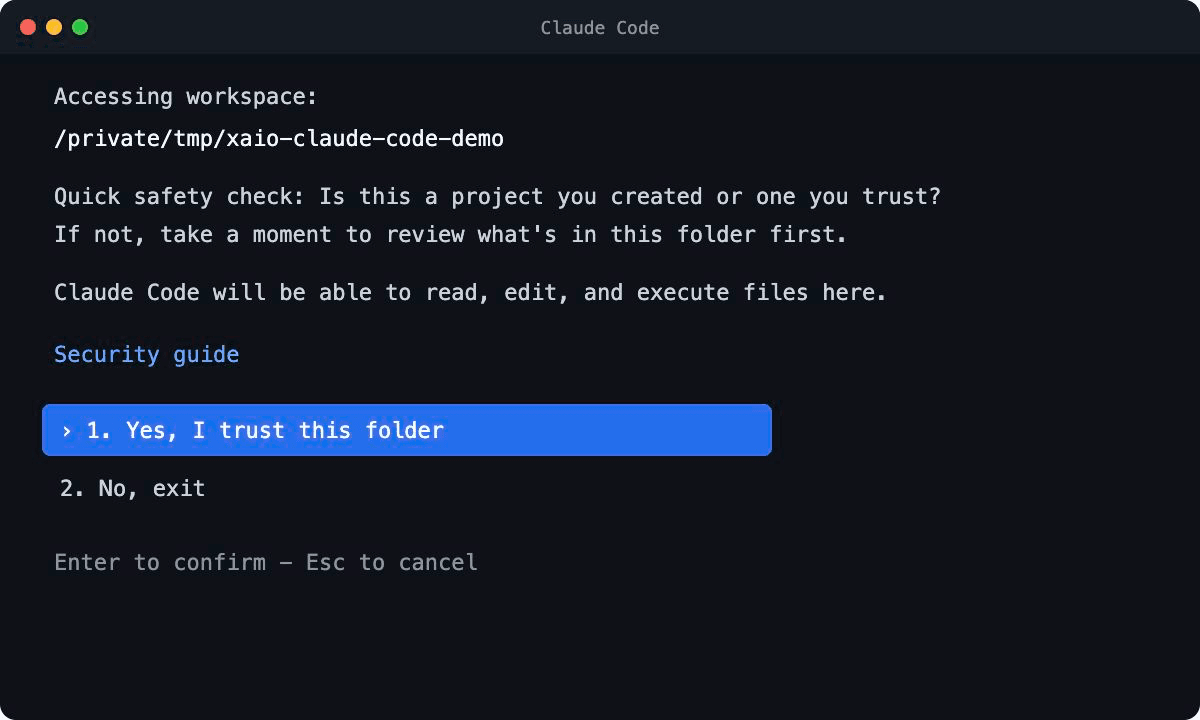
After the conversation starts, send:
Reply only with "Configuration successful." Do not create or modify any files.A response of "Configuration successful" confirms that Claude Code completed a real request through the active provider.
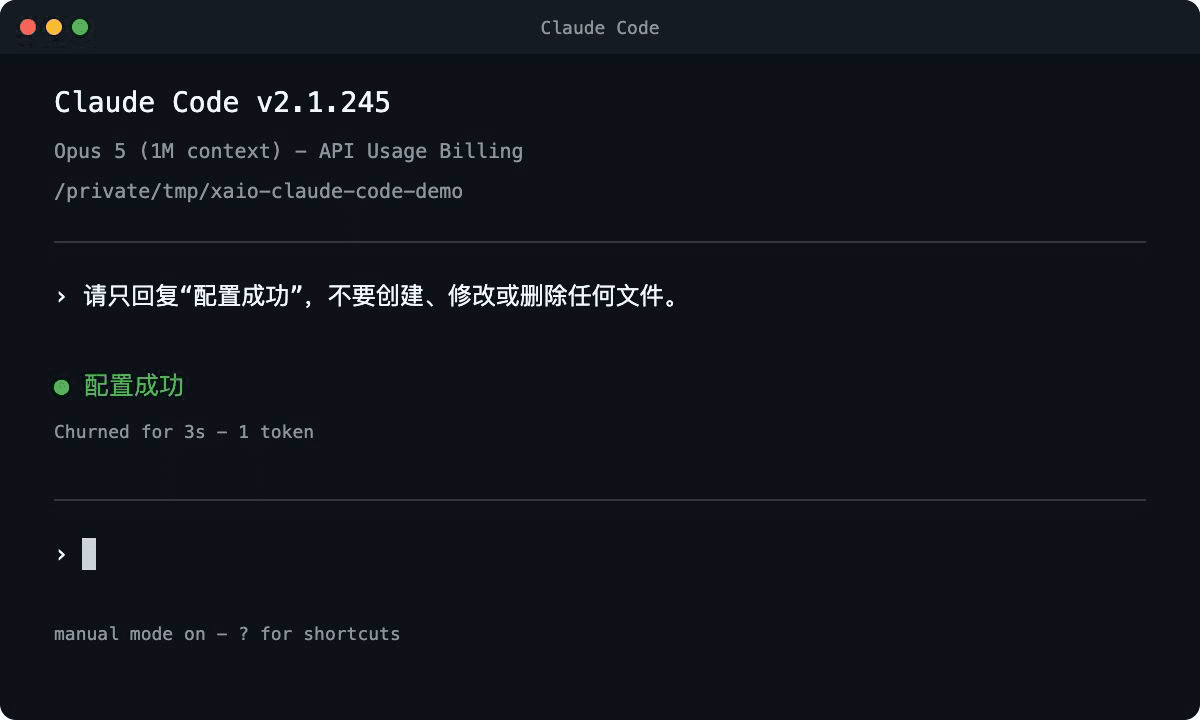
Enter /exit to quit Claude Code, then inspect the test folder again:
ls -AIf ls -A has no output, the folder is still empty. This tutorial was fully verified with Claude Code 2.1.245: the model replied successfully in an empty directory and created no files.
Troubleshooting
The terminal reports claude: command not found
Return to CC Switch Settings → About and click Refresh under Local Environment Check. If Claude Code still appears as not installed, click Install again. If the card already shows a green check mark, quit Terminal completely, reopen it, and run:
claude --versionIf the command is still unavailable, check whether $HOME/.local/bin/claude exists. If it does, add $HOME/.local/bin to PATH and reopen the terminal:
export PATH="$HOME/.local/bin:$PATH"
claude --version
Once this works, you can add the same export PATH=... line to ~/.zshrc. Windows users should close and reopen PowerShell.
CC Switch does not open after you click one-click setup
Confirm that CC Switch is installed in Applications and has been opened manually at least once. Return to Chrome and click One-click Setup for CC Switch (Claude Code) again, then click Open CC Switch when the external application prompt appears. If macOS blocks the first launch, open CC Switch manually from Applications and respond to the standard macOS security prompt. Do not bypass Gatekeeper.
Claude Code still asks you to sign in to Anthropic
Confirm that Skip Claude Code Initial Installation Confirmation is enabled in CC Switch and that the X-AIO Tokens Plan card has a blue border. Provider changes usually apply immediately. If the current session still asks you to sign in, exit Claude Code and run claude again from the test folder.
The import succeeded, but X-AIO is not enabled
Return to the CC Switch home screen, select Claude Code at the top, and click the X-AIO Tokens Plan provider card. It is the current provider only after the card gains a blue border. If the current Claude Code session does not switch immediately, exit and restart it.
Requests take a long time or time out
Check your current network, VPN, or proxy connection, then confirm on the X-AIO API key page that the key has not expired and that the Tokens Plan account has available quota. A new key may need a short time to synchronize; wait about one minute and try again. If only Anthropic's official pages are unavailable, also consider the regional restrictions and account risks described above.
Configure Claude Code with X-AIO Coding Helper
Install Claude Code with the official installer, then use the current X-AIO Coding Helper 0.9.x release line to configure four models, the gateway, and your first verified request.
Configure OpenCode with X-AIO Coding Helper
Use OpenCode 1.18.23 and the current X-AIO Coding Helper 0.9.x release line to configure the X-AIO provider, primary model, and small model, then verify a real request.